KNOWLEDGE CENTER
“Take a Break” - New Notification for Drivers
The “Take a Break” feature helps organizations enforce compliance with their policy regarding the amount of time drivers are permitted to drive consecutively before resting.
“Take a Break” automatically sends each driver a reminder to stop for a break when they reach the threshold set by management.
Setting up “Take a Break”
To activate the “Take a Break” feature, please contact your account manager. Once it is activated, you will need to go through the following setup steps:
-
Login to GreenRoad Central™
-
Go to the Admin tab and select the Policy view
-
Choose the Mobile notifications tab
-
To configure the notifications that will be sent to drivers, enter the following parameters into the Continuous Driving Time section:
-
Driving Time Limit: in the 1st row, enter the number of minutes that a driver is allowed to drive continuously without taking a break (example: 240 minutes). Minimum value: 30 minutes.
-
Warning Alert: in the 2nd row, enter the number of minutes before reaching the Driving Time Limit that the system should send the reminder. You can configure any number above 15 minutes in this field, as long as it is lower than the Driving Time Limit.
-
-
Indicate whether the policy should apply to all sub-units.
-
To activate the feature, slide the button to On.
-
Click on Save to activate the configuration.
Monitor driver compliance with the Policy
After configuring the feature, managers have several ways to monitor driver alignment with the policy:
Setup Alerts
A new ‘Continuous Driving Time’ alert has been created and added to the list of available alerts.
To setup the ‘Continuous Driving Time’ alert:
-
Go to Admin tab and select the Alerts view
-
Choose the ‘Continuous Driving Time’ alert and setup the configuration based on your preferences:
-
You can rename the alert
-
Decide whether to apply the alert to sub-OUs or only to monitor the root account (the organization’s highest OU)
-
Choose how the alert should be delivered: either via email or as a ToDo task that will appear under the ToDo tab
-
Specify who should receive the alerts (all managers or specified managers only)
-
Save your configuration
-
Once the alert has been triggered (when the driver has exceeded the Driving Time Limit set in the Policy tab), the alert will appear in the following tabs in Central:
-
‘Alerts log’ report in the Reporting section
-
Locations tab > Alerts table
Data is power
The system's reports provide managers with another great tool for monitoring driver compliance with this policy.
We have added columns dedicated to the 'Take a Break' feature to 3 existing reports:
-
‘Trips log’ report – We added a "Driving time violated?" column indicating whether the driver exceeded the Driving Time Limit as set in the Policy tab
-
‘Trips and Stops’ report - We added a "Driving time violated?" column indicating whether the driver exceeded the Driving Time Limit as set in the Policy tab
-
‘Alerts log’ report- This report contains the list of alerts configured at the account level, now including the ‘Continuous Driving Time’ alert if configured and triggered.
What happens on the driver’s end?
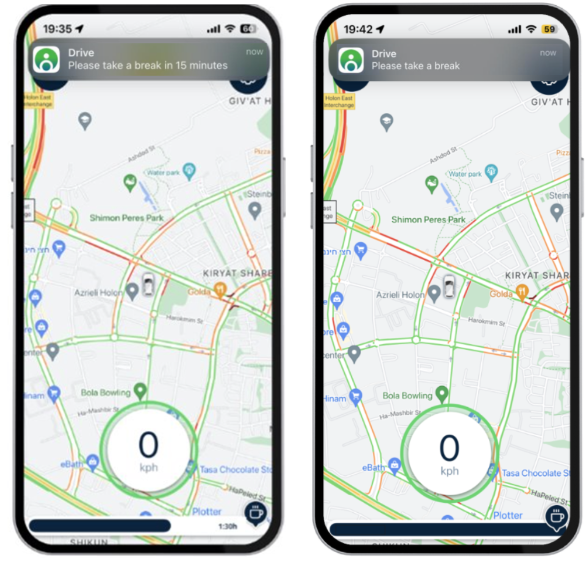
As soon as you activate “Take a Break” notifications, drivers will see a new progress bar widget on their App’s Live Map screen while they are on the road, set to On Duty mode (and if the App is running in the foreground) to help them plan their trip and their stops.
In addition, the driver will receive two Take a Break notifications:
-
The first notification will be sent when the driver reaches the threshold set for the Warning Alert (e.g “Please take a break in 15 minutes”)
-
The second alert will be sent when the driver reaches the Driving Time Limit you have set (e.g “Please take a break”)
To activate this feature, please contact your GreenRoad Account Manager.
Link to feature guide