top of page

KNOWLEDGE CENTER

Daily Idling Rate


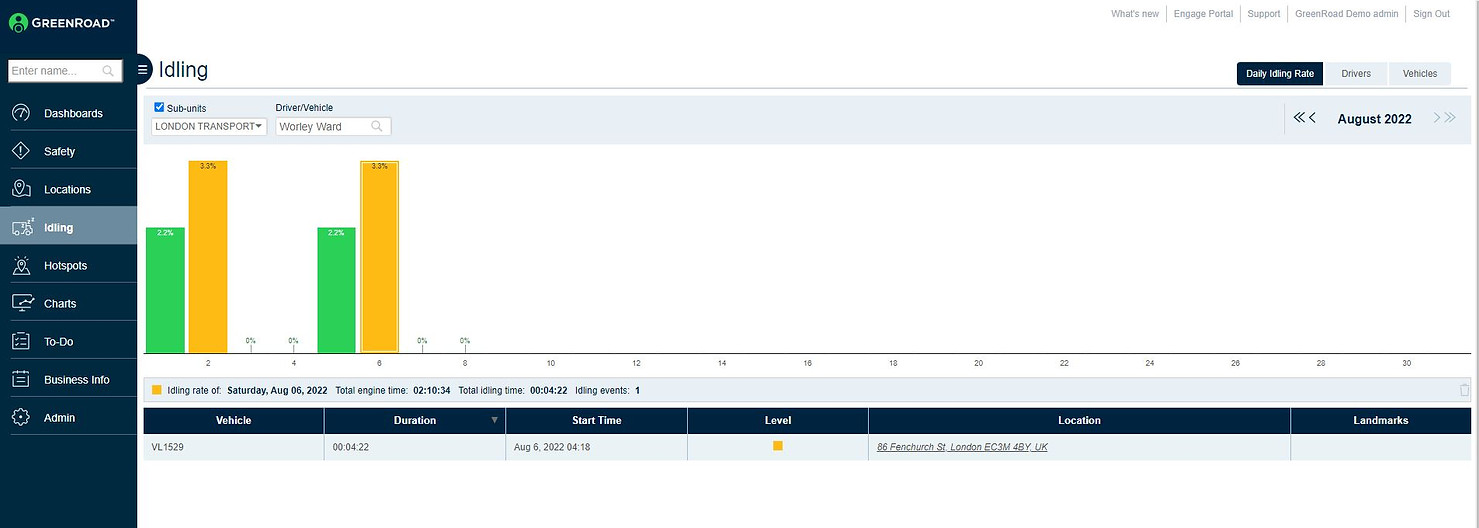
The Daily Idling Rate provides a detailed analysis of the idling events recorded during the past month for a specific driver or vehicle. This helps you understand idling trends and identify specific problematic drivers.
idling.JPG

Enter a driver or vehicle into the text box in the menu above the graph. Each bar represents a single day's aggregated data. The overall idling percentage is displayed on the bar, and the severity level is indicated by the bar's color: green, yellow or red.


Clicking on a single day will display a list of all the idling events that occurred that day in the table below. For each idling event, the color indicates its severity rating (yellow or red), and its duration, start time and location are also listed. Also noted is whether the location is part of an area defined as a landmark.


Managers with designated permissions are able to delete individual idling events. These deletions and their reason codes are logged and aggregated in the 'Deleted Idling Events Log' report available in GreenRoad Central™.

​

​

​

​

​

​

This feature gives you greater control and flexibility over the download of video clips from your in-vehicle cameras, helping you manage and optimize your monthly SIM data consumption.


What This Feature Allows You to Do

With Video Download Rate Limiting, you can customize a policy that limits the number of video clips downloaded within a defined period of time.


Key Benefits

  • Prevent Unexpected Data Usage Set clear limits to ensure your camera’s SIM usage stays within your planned data package.

  • Full Flexibility You decide how many clips can be downloaded and over what time window.

  • Visibility Into Data Consumption View the estimated monthly data consumption (30-day forecast).


Default Settings

By default, Video Download Rate Limiting is disabled.

The feature becomes active only after you enable it and define your desired policy.


How to Access the Video Download Rate Limiting

  1. Log in to GreenRoad Central with your credentials.

  2. Open the Administration tab in the main navigation menu.

  3. Select Policy from the dropdown menu.

  4. Navigate to the Video tab.

  5. The Video Download Rate Limiting section will appear with configuration options


If you’d like assistance configuring this feature, our Support team will be happy to help.


Note

The limit on the number of video clips is applied chronologically, based on the order in which clips arrive. The system checks each request according to your Video Download Control policy, and only allows downloads until the defined limit for the selected time period is reached.

bottom of page